Please note that it usually takes much longer for Vrbo to finish the connection and mapping compared to other channels. Also, Vrbo can be a bit tricky, and the client needs to connect it because it will ask for their credit card details. Please follow these detailed instructions.
Step 1. Log in to your Godo account and follow these steps.
Step 2. Activate the rooms
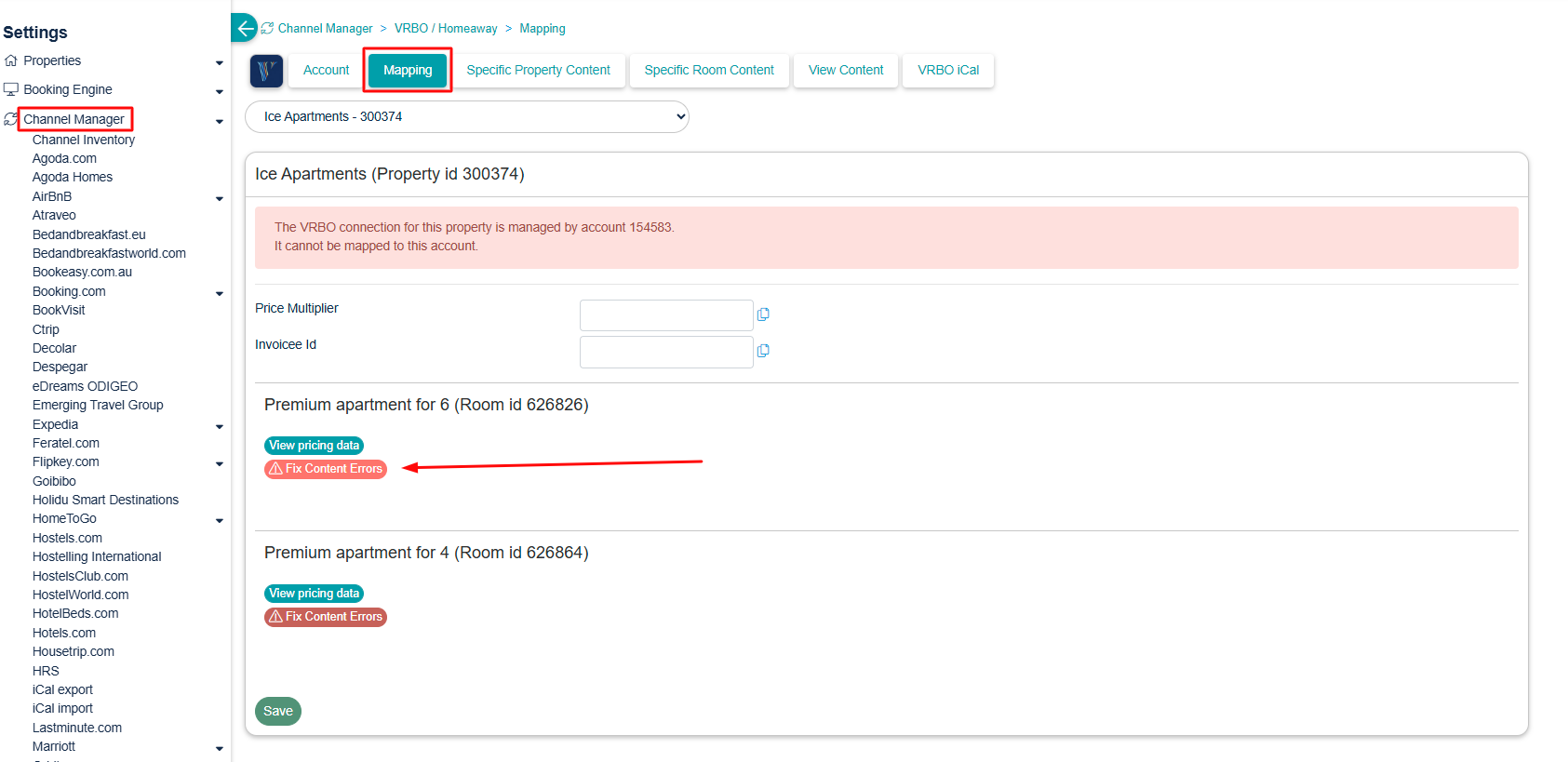
Go to SETTINGS → CHANNEL MANAGER → VRBO → MAPPING → tick "Enable" for all rooms you want to connect.
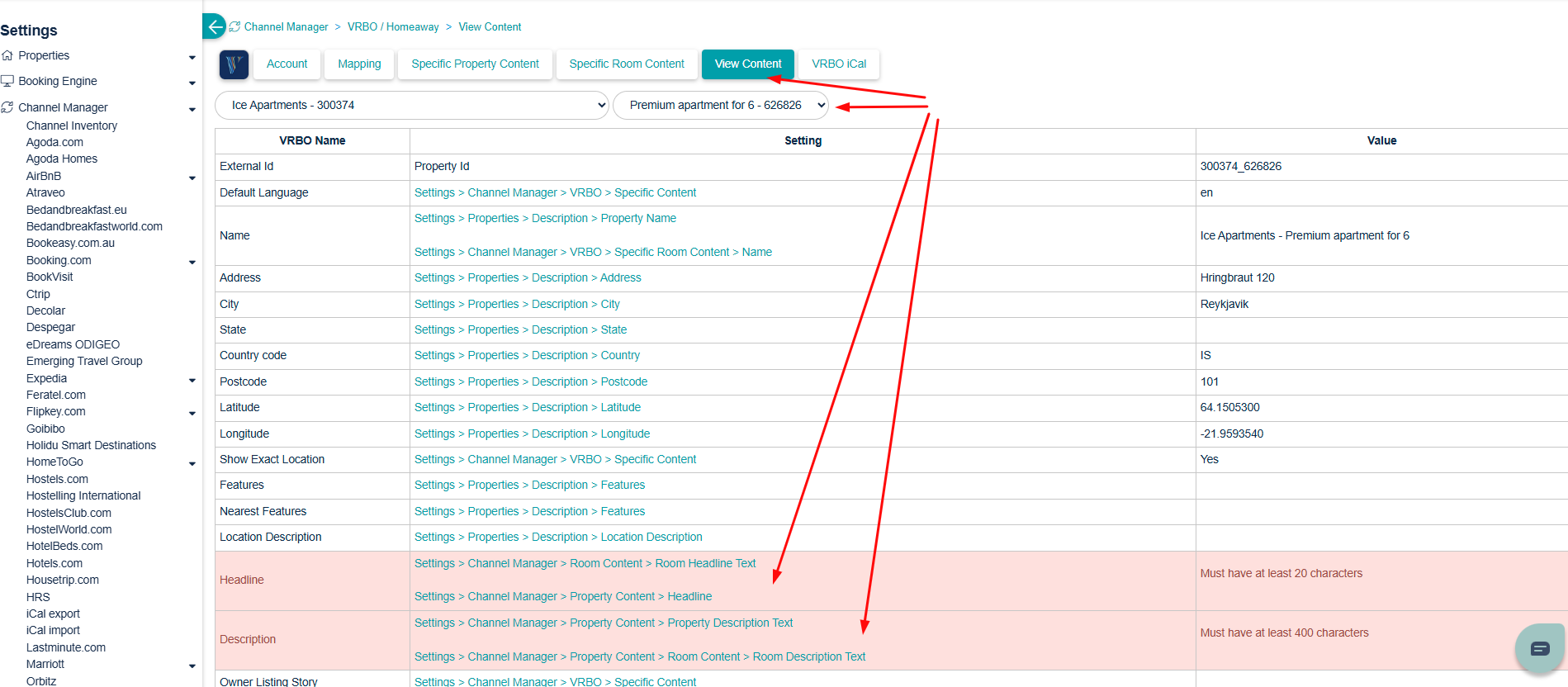
If you see a red button "Fix Content Errors," your content does not meet Vrbo's requirements. Click the button. You have to fix the errors for all room types. Any settings that do not meet Vrbo's requirements are highlighted in red. Click on the links to go to the settings where you can fix the problems.
 |  |
Go to SETTINGS → CHANNEL MANAGER → VRBO → ACCOUNT → click the 'Generate VRBO Software ID' button.
This will generate your "Vrbo Software User ID," which you can always see in Godo under SETTINGS → CHANNEL MANAGER → VRBO → ACCOUNT → MAPPING.
Step 2.
During the onboarding process, Vrbo will ask you to enter your credit card and your tax number.
Step 3.
When at least one room is activated for sending, you can start the self-onboarding process.
If you have subaccounts, double-check that you are logged into the account/subaccount you want to connect.
Click on "Connect with Vrbo. This will start Vrbo's self-onboarding process.
Follow the steps.
Vrbo defines the currency you can use for your Vrbo account.
Make sure this currency is set in Godo in SETTINGS → CHANNEL MANAGER → VRBO → ACCOUNT.
After you have connected with Vrbo, you will have a "View Listings" button. When you click it, you will see the properties/rooms that are in the Godo feed for Vrbo.
Step 4. Enter registration
Go to SETTINGS → CHANNEL MANAGER → VRBO → MAPPING.
Click on the "Registration details" button.
Click on "Update Registration" to enter your registration details.
Step 5. Check the listing status
Go to SETTINGS → CHANNEL MANAGER → VRBO → MAPPING.
Click on the "View Status at Vrbo" button.
Check the content, especially the "activeStatus."
Was this article helpful?
That’s Great!
Thank you for your feedback
Sorry! We couldn't be helpful
Thank you for your feedback
Feedback sent
We appreciate your effort and will try to fix the article